The Mirakl Catalog Manager shows how far each product listing you created has progressed. This article explains where to read that status, what the three status families mean (acceptance, validation, synchronization) and how to read the reason behind a decision.
Where do I track product validation in Mirakl?
In your Mirakl back office, open Catalog → Catalog management. The All view lists all your listings with their main status (Status column). The To review view groups the listings waiting for a fix from you.
What do the statuses mean?
Each listing has three separate statuses. You can filter your catalog on each of them via Filter → Status.
Acceptance status: the Marketplace team’s decision
| Status | What it means |
|---|---|
| New | The listing has just been created and has not entered the review queue yet. |
| Pending verification | Your product is in the Marketplace team’s review queue. No action is expected from you. |
| Accepted | Your product was accepted by the Marketplace team. |
| Changes required | The product is rejected temporarily until you make changes. The reasons are detailed in the article Why was my product rejected?. |
| Rejected | Your product was rejected permanently (example: The product does not comply with the terms of use of Alltricks). |
Validation status: data completeness
| Status | What it means |
|---|---|
| Valid data | All mandatory attributes are filled in. This does not guarantee the listing will be accepted. |
| Invalid data | Mandatory information is missing or incorrect: the product will not be published as it stands. |
| Pending media | The listing’s images are being processed. |
| Not computed | Data validation has not been run yet. |
Synchronization status: sending to the Alltricks website
| Status | What it means |
|---|---|
| Not synchronized | The listing has not been sent to the website yet, for example because it is not accepted yet. |
| Synchronized | The listing is synchronized to the Alltricks website. In the list, it shows as Published. |
| Synchronization error | The listing was accepted, but its first synchronization or latest update failed. If it was already online, it stays online in its previous version. The messages are detailed in the article What do my product synchronization errors mean?. |
How long does the Marketplace team take to validate my products?
Products are reviewed by our teams on a rolling basis, usually within 48 hours. This benchmark can stretch during peak periods: it is not a firm deadline, and there is no fast-track validation process.
A product in Pending verification therefore requires no action from you. If the wait exceeds 5 days, open a ticket: that is the threshold at which a check on our side is justified.
? Good to know
Check the actual status of your products in the To review view before opening a ticket: the Invalid data and Changes required statuses are waiting for an action from you and will not progress on their own.
How do I read the reason attached to a status?
For most statuses, a reason explains the Marketplace team’s decision. You can read it in two ways:
- From the list: click the listing’s status. A panel opens on the right with its three statuses, then Acceptance status details and the Reason.
- From the listing: click the eye icon next to the product name. The full listing opens, with an orange banner showing the expected changes and the reason. The Edit button then lets you fix the listing.
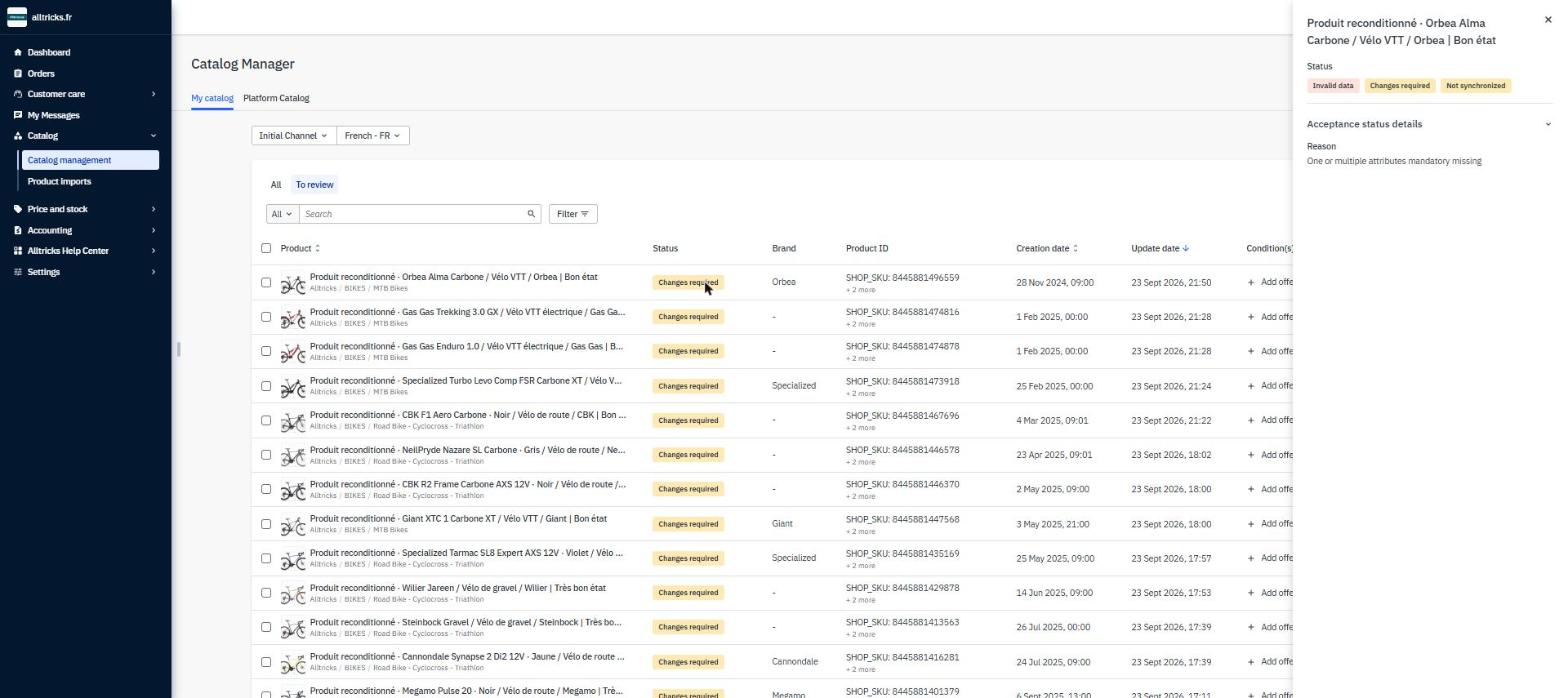
“To review” view: click a listing’s status and the right-hand panel shows its three statuses and the reason.
ℹ️ Good to know
Read this reason in Mirakl and not in your feed aggregator: the information is not always passed on there.
How do I view the offers linked to my products?
In Filter → Related offers, choose No offers, Inactive offers or Active offers. Spotting products that are already online but have no offer attached helps you identify missed opportunities and adjust your priorities, maximizing your presence and your chances of selling.
My product is published and my offer is active, but nothing shows on the website?
In that case, check your price: on a product also sold by Alltricks, a selling price equal to or higher than the recommended retail price (PPC) recorded in our system blocks your offer, even if you are the only seller with stock. Set a selling price strictly lower than the recommended retail price to unblock it.
An offer is not displayed either when Alltricks has its own stock on the product: brands working directly with Alltricks always have priority. Finally, when several sellers offer the same product, only the offer that wins the buybox appears on the product page.
Learn more in How do I set up my prices and my strike through prices? and What is the buybox and how do I win it?
In short
- The status of each listing is shown in Mirakl, Catalog → Catalog management; the To review view groups the listings to fix.
- Each listing has three statuses: acceptance, validation and synchronization.
- A listing is online when it is accepted and synchronized (Published in the list). In case of a synchronization error, a listing that was already online stays online in its previous version.
- Click a listing’s status to read the reason in the right-hand panel.
- Make sure your published products have an offer attached (Related offers filter).
- Published product and active offer but not visible: check your price against the PPC, Alltricks stock and the buybox.
Learn more
- Why was my product rejected?
- What do my product synchronization errors mean?
- How do I check my offers?
Need help?
Open a ticket from the Marketplace support form. One request = one ticket.
Cet article a-t-il été utile ?
C'est super !
Merci pour votre commentaire
Désolé ! Nous n'avons pas pu vous être utile
Merci pour votre commentaire
Commentaires envoyés
Nous apprécions vos efforts et nous allons corriger l'article