The Variant Group Code (VGC), also called the grouping attribute, brings together under a single listing the identical products available in several sizes. This article explains what it is for, which categories require it and how to fill it in without breaking your data.
What is the Variant Group Code for?
Adding a variant makes the size drop-down appear on the live listing. The customer can then see straight away which size or sizes are available for the same item.
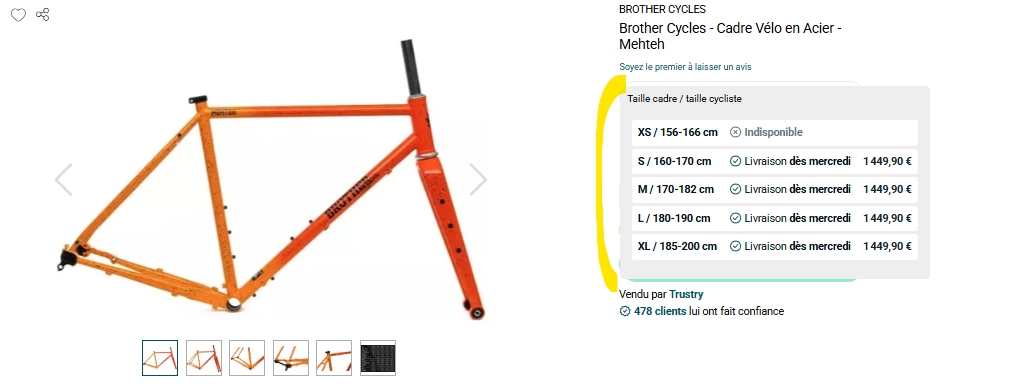
The video below details what the Variant Group Code is for and how it works.
⚠️ Important
Once the variant is created, it is very difficult, in case of a mistake, to resynchronize everything and get valid data. Read this article in full before creating your first variants.
Which products are concerned by the VGC?
Not all categories require a VGC. The variant is however mandatory for some categories: the list of the categories concerned is available as an attachment to this article. Filling in the variant now lets you anticipate the addition of further sizes, even if you only have one size available today.
Each product category comes with a mandatory attribute to fill in. That attribute is what creates the differentiating element between the listings of the same variant:
- Apparel: mandatory attribute Taille (size)
- Bike frame: mandatory attribute Taille cadre (frame size)
- MTB wheels: mandatory attribute Corps Roues Libre (freehub body)
- Cassettes: mandatory attribute Denture Cassette (cassette sprockets)
How do I create my variant code?
To create the drop-down, enter the same code in the variant field of every listing of the same product to be grouped by size. That code can be, for example, the EAN of the smallest size.
Example for the product "Maillot Femme été manches courtes BLEU" (women's short-sleeve summer jersey, blue):
- Product listing size XS > variant code 1234567890123
- Product listing size S > variant code 1234567890123
- Product listing size M > variant code 1234567890123
- Product listing size L > variant code 1234567890123
The jersey then carries a variant, whose drop-down displays these 4 different sizes online.
How do I add the VGC depending on my integration method?
- If you create your product listings in Mirakl, activate the variant when creating the listing.
- If you use a feed aggregator, add the variant to your product listings from that aggregator. Do it from the start.
The video below shows how to add a variant manually.
Before opening a support ticket, check how your variant is displayed in Mirakl. An aggregator does not always give a complete view.
How do I group my products by color?
Grouping by color does not go through the VGC. Fill in the following attributes and the website takes care of the rest: the Modèle (model), the Couleur principale (main color) and the Genre (gender). See the Fox Flexair long gloves listing for an example.
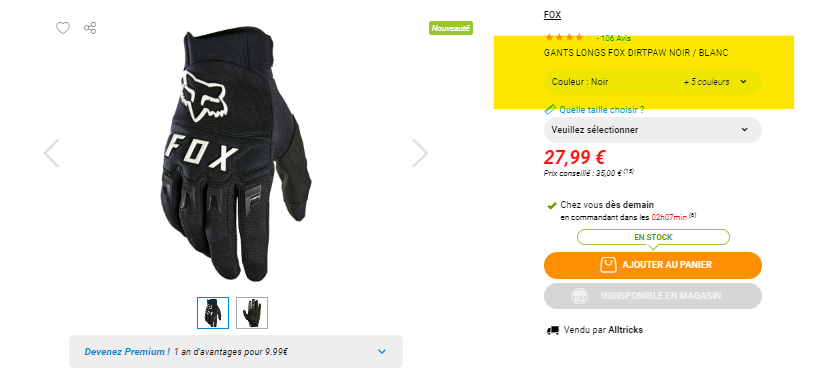
| Products | Size | Model | Color | Gender |
|---|---|---|---|---|
| Gants Longs Dirtpaw Noir | S | Gants Longs Dirtpaw | Noir | Homme |
| Gants Longs Dirtpaw Noir | M | Gants Longs Dirtpaw | Noir | Homme |
| Gants Longs Dirtpaw Rouge | S | Gants Longs Dirtpaw | Rouge | Homme |
What are the most frequent mistakes?
- Grouping under the same variant several different products (for example T-shirts in different colors) that share the same size. The drop-down then displays the same value three or four times. Check the reference value of the variant for each category and only group an identical product.
- Linking several products to the same VGC, which mixes everything up. Go through each product methodically and link it back to its own code.
In short
- The VGC groups the listings of an identical product by size, never by color.
- Enter the same variant code on every listing of the group.
- Fill in the mandatory differentiating attribute of the category (Taille, Taille cadre, Corps Roues Libre, Denture Cassette).
- Check how the variant is displayed in Mirakl before opening a ticket.
- Check your codes before publishing: a variant mistake is very hard to correct.
Learn more
- How do I add a product manually in Mirakl?
- How do I fill in and import my product import file?
- Why was my product rejected?
Need help?
Open a ticket from the Marketplace support form. One request = one ticket.
Cet article a-t-il été utile ?
C'est super !
Merci pour votre commentaire
Désolé ! Nous n'avons pas pu vous être utile
Merci pour votre commentaire
Commentaires envoyés
Nous apprécions vos efforts et nous allons corriger l'article