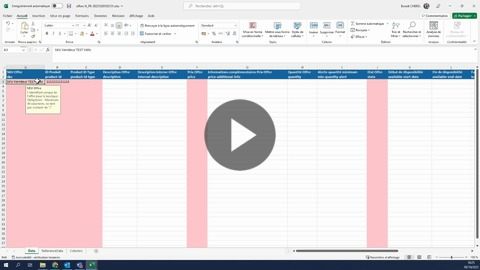
Once you have seen (in the first article in this section) how to retrieve a valid offer import file, all you have to do is complete it. Please note that before importing your offers, your product (if you are creating products) must be Validated + Published.
Please note:

Instructions for the Offer import file:
- Offer SKU (Stock Keeping Unit): unique reference for a product for a given seller and a given price. It must be unique for each reference.
- Product ID: enter the product's EAN, which must contain 13 digits.
- Product ID type: enter “EAN”
- Offer price: the sale price in euros (€), including VAT. It must be in Number format.
- Offer quantity: the quantity available in stock
- Minimum quantity alert: minimum quantity threshold in stock that triggers an email alert. No alert will be sent if this box is left blank.
- Logistics family: corresponds to the name of the logistics class relating to shipping costs (Small, Large, Personal 1, etc.). The “Small” family is selected by default if the box is left blank.
- Shipping time: number of business days required to ship the offer.
- Recommended retail price: please note that this price will be displayed on our website and must therefore be valid in accordance with regulatory requirements.
Operator template format
To import the Offer file, please follow the process below:
1. EAN field format
NB: Excel changes your EAN code to scientific format because it recognizes it as a number.
Example: 5465476546546 will be condensed to 5.46548E+12.
This will corrupt the data and prevent your product from being created.
The solution is as follows:
- Select the column with the EANs.
- Right-click and select the Format menu.
- On the Number tab, choose Custom.
- Delete the numbers entered in Type.
- Type the number 0 thirteen times in a row.
- Save the file.
If your EAN codes do not contain 13 digits, please follow this process:
1 - Save the Offers import file in CSV UTF-8 format. The file must be encoded in UTF-8. This allows titles and descriptions to appear correctly. Once this is done, please close the file and reopen it in this format. It will appear in CSV UTF-8 format. Keep the file open on your desktop throughout the process. .
2 - Delete the first line of the file
3 - EAN field format:
- NB: Excel changes your EAN code to scientific format because it recognizes it as a number.
- E.g.: 5465476546546 will be condensed to 5.46548E+12.
- This will corrupt the data and prevent your product from being created.
- The solution is as follows:
- Select the column with the EANs.
- Right-click and select the Format menu.
- On the Number tab, choose Custom
- Delete the numbers entered in Type
- Type the number 0 thirteen times in a row
4. Replace “Nine” in the Offer Status column with “11”.
5. Price: decimals must be separated by a period
Example of an Offers import file:
Cet article a-t-il été utile ?
C'est super !
Merci pour votre commentaire
Désolé ! Nous n'avons pas pu vous être utile
Merci pour votre commentaire
Commentaires envoyés
Nous apprécions vos efforts et nous allons corriger l'article